If Ctrl+F does not find anything in your PDF, the file does not contain real text. The text you see is only an image. This usually happens with scanned documents. The fix is OCR, which turns images into real, searchable text.

What “PDF Not Searchable” Means
Your PDF is not searchable when:
- •Ctrl+F finds nothing
- •You see text, but search does not work
- •You cannot select or copy text
- •Highlighting does not work
Important:
Seeing text does not mean the PDF has searchable text.
This guide is only about search not working.
If text is invisible or missing, that is a different problem.
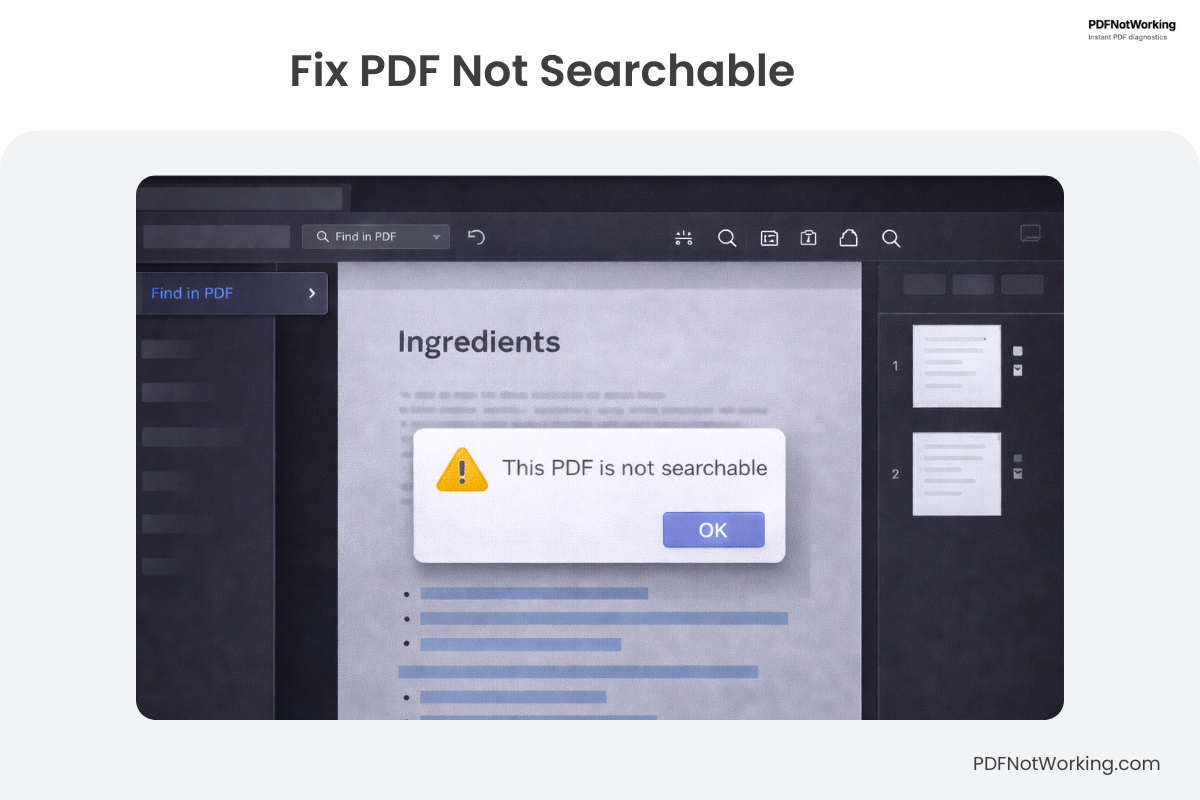
PDF Not Searchable? Fix Ctrl+F & Make Text Searchable
Why PDFs Are Not Searchable
Most Common Reason: The PDF Is a Scan
Many PDFs are just photos of pages.
This means:
- •text looks normal
- •but it is only an image
- •search and copy do not work
Scanners often create PDFs this way.
PDF Was Saved Incorrectly
Some programs create PDFs as images when:
- •screenshots are saved as PDF
- •“Print to PDF” is used
- •design files are flattened
These PDFs contain no real text.
Text Was Broken During Conversion
Sometimes the PDF had text, but:
- •OCR was done badly
- •the file was damaged
- •the text layer broke
Search then stops working.
Security Restrictions (Rare)
Some PDFs block:
- •searching
- •copying
This only happens if the file is locked.
Quick Test (1 Minute)
1Step: Try Selecting Text
Drag your mouse over the text.
- •selectable → real text exists
- •not selectable → image-only PDF
2Step: Try Ctrl+F
Search for a word you see.
- •found → searchable
- •not found → OCR needed
3Step: Open in Adobe Reader
If search works there, your browser viewer is the problem.
How to Fix It
Best Fix: Use OCR
OCR turns images into real text.
With Adobe Acrobat:
- •Tools → Text Recognition
- •Run OCR
Result:
- •Ctrl+F works
- •text can be selected and copied
Free Option: Online OCR Tools
- •Search “PDF OCR online”
- •Upload your PDF
- •Download the searchable version
Works well if the scan is clear.
If You Created the PDF
- •Export directly to PDF
- •Do not use screenshots
- •Avoid “Print to PDF”
This creates real text instead of images.
When It Cannot Be Fixed
Search will not work if:
- •the scan is very blurry
- •the text is unreadable
- •the PDF is locked and restricted
In these cases, the document must be scanned again.
FAQs
Why does Ctrl+F not work even though I see text?
Because the text is an image, not real text.
Why does Word find text but the PDF doesn’t?
Word automatically runs OCR. The PDF does not.
Is OCR always perfect?
No. It depends on scan quality. Clear scans work best.
Can I fix this for free?
Yes. Many free online OCR tools exist.
Is a non-searchable PDF broken?
No. It is usually just scanned.